
Optimizing Your Gaming Setup for Peak Performance
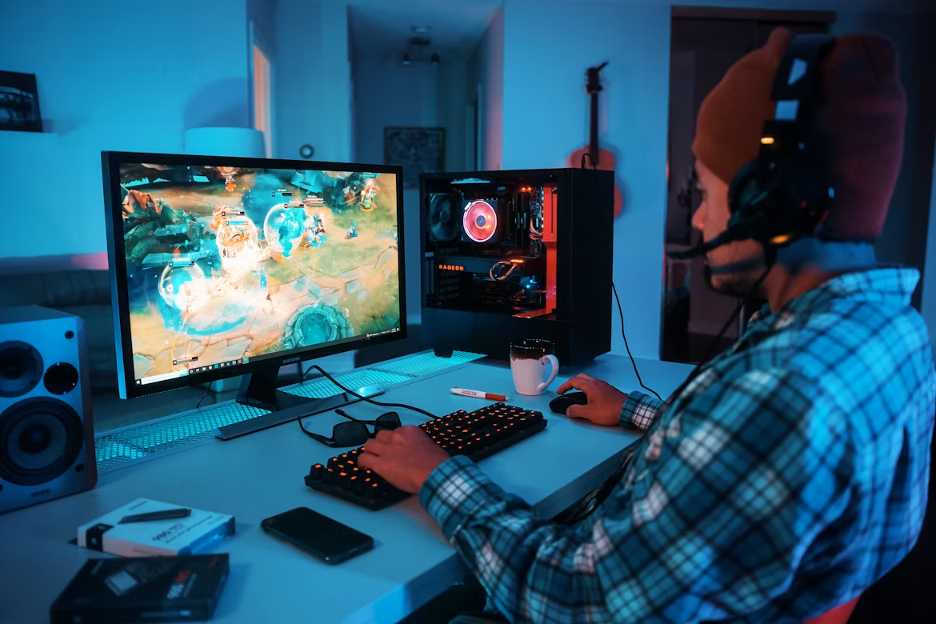
A high-performance gaming setup depends on more than raw processing power. Display settings, seating position, lighting and even cable placement can affect comfort and responsiveness during a long session. A thoughtful setup also makes upgrades easier because each component has a clear purpose.
Before buying new hardware, review the space as a complete system and fix the issues that are already limiting your experience.
Beyond the Graphics Card
Start with the software and hardware you already own. Install current graphics drivers, remove unnecessary startup programs and confirm that your monitor is using its highest supported refresh rate. HP’s guide to PC gaming optimization also covers practical adjustments such as enabling Game Mode and managing background activity.
Check temperatures while running a demanding game. Dust buildup or restricted airflow can cause components to reduce performance as they heat up. Clean filters, keep intake vents clear and give the computer several inches of open space. If frame rates remain inconsistent, lower shadows or reflections first. These settings often consume significant resources without dramatically changing the overall image.
Ergonomics for Extended Play
Set your chair height so your feet rest flat and your knees sit near a 90-degree angle. Your forearms should remain roughly parallel to the floor when your hands reach the keyboard. If the desk is too high, a footrest can help maintain a supported posture.
Seat depth and back support matter during extended play. Leave a small gap between the seat edge and the back of your knees, then adjust the lumbar support to follow the natural curve of your lower back. A breathable fabric gaming chair can suit gamers and streamers who want ergonomic support during long sessions. Even with supportive seating, stand up regularly to stretch your hips, shoulders and wrists.
Lighting and Audio Immersion
Place a soft light behind or beside the monitor to reduce the contrast between the display and the surrounding room. Avoid pointing a bright lamp directly at the screen because reflections can hide detail and encourage eye strain. Adjustable LEDs can add color, but keep their brightness below the monitor’s level so they don’t become distracting.
For audio, speaker placement matters as much as volume. Position left and right speakers at similar distances from your seat, ideally forming a small triangle with your listening position. Headset users should choose a comfortable model with clear directional sound and keep the volume moderate. Enable spatial audio only if the game supports it well, since poor processing can make footsteps and environmental cues harder to locate.
Cable Management Mastery
Unplug the setup and sort cables by purpose before fastening anything down. Route power cords together along one side of the desk, then keep audio and data cables on a separate path where possible. Velcro straps are easier to reopen than plastic ties when you replace a keyboard or add another display.
Mount a cable tray beneath the rear edge of the desk to hold power strips and bulky adapters. Leave a little slack near devices that move, including a wired mouse or adjustable monitor. Labels at both ends of less obvious cables can save time during troubleshooting. Once everything is connected, move the chair through its full range and raise the desk if it’s adjustable to confirm that no cord pulls tight.
Optimizing Your Desk Space
Keep the primary monitor directly in front of you, with its top edge at or slightly below eye level. A second screen can sit beside it at a slight inward angle. Frequently used controls should stay within easy reach, while chargers, controllers and other occasional items can move to a drawer or small shelf.
A practical gaming setup guide can help you compare layout ideas, but your measurements should drive the final arrangement. Test mouse movement before placing decorative items or speakers. Low-sensitivity players may need 18 inches or more of clear horizontal space, while a compact keyboard can free up room without requiring a larger desk.
Once the layout feels right, mark the monitor stand and keyboard positions with small removable tabs. Those reference points make it easy to restore the setup after cleaning, moving equipment or testing a new accessory. The best final check is simple: play for an hour and notice where your hands, eyes and shoulders naturally want the equipment to be.