
How to Merge PST Files without Creating Duplicates?

PST file, as you’re aware, is used to store mailbox items in Outlook. This file format is highly useful when it comes to backup the mailbox data, archive the Outlook data, or transfer the data. Moreover, this file makes it convenient to save different Outlook mail items or folders separately. But over time, you may find yourself in a situation where you would have several PST files scattered on your system. This makes it difficult for you to manage them. For easy management, you can simply merge your multiple PST file into a single file. In this article, we will explain how to merge PST files without duplicates via Outlook or with the help of a specialized PST merge tool.
Reasons why you should Merge PST Files
Listed below are the reasons to merge PST files:
- Merging different PST files makes organization and management of mailbox data easy.
- Creating a single PST file makes it easier when migrating from one platform to another.
- Merging PST files helps create a unified repository of all emails and other mailbox items.
- Merging PST files helps avoid duplicate mailbox folder and items.
Methods to Merge PST Files without Duplicates
Let’s see how to merge PST files without duplicates.
Method 1: Use Outlook’s Built-in Import/Export Feature
There is no specific functionality in Outlook for merging PST files. But there is a workaround. You can leverage the Import and Export feature to perform this. If you’re wondering how, here is how you can do this:
Step 1: Create a New PST File
To merge PST files in Outlook, you need to first create a new PST file. Follow the steps given below:
- Launch MS Outlook.
- Click on the Home tab in the Menu bar.
- Click on New Items in the New section. Then, go to More Items > Outlook Data File.
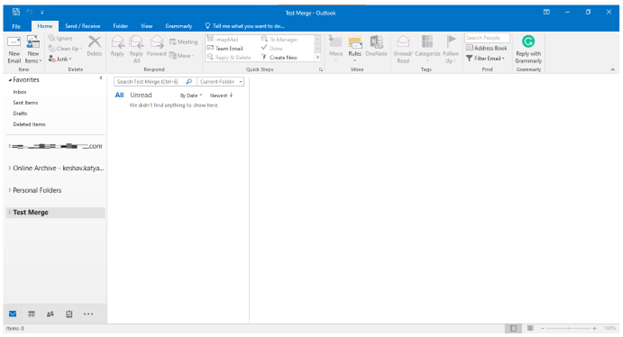
- Give the newly created PST file a name (Let’s name it ‘Test Merge’ in this case). Click on OK.
- You will see the newly created PST file listed in the left pane.
Step 2: Merge the PST Files Data into the New PST
Now, what you have to do is use the Import and Export wizard to import other PST files’ data into the new PST file. Here is how:
- Click on File.
- Go to Open & Export > Import/Export.
- Under Choose an action to perform, select Import from another program or file. Then, click Next to proceed.
- Now, select the file type as Outlook Data File (.pst) and click on Next.
- After that, select the PST file that you want to merge into the new file. Remember to select the desired option to avoid the duplicates. Once done, click on Next.
- Select the Import items into the same folder in option and then select the new PST file. Ensure that the Include folders checkbox is selected and click Finish.
You can replicate the above process for merging other PST files data.
Drawbacks of the Above Workaround
This method is free-to-use. However, it has some limitations:
- It can merge a single PST file at a time.
- The process is lengthy, slow, and time-consuming.
- There are chances of missing the data or duplicate data.
- It is suitable for merging a few PST files.
Note: If you are using the new Outlook, you have to switch to the Classic Outlook to perform the above process.
Method 2: Use a Specialized PST Merge Tool
Though the above workaround can assist you in combining/merging the various PST files data, it is not that convenient. For a hassle-free process, you can take the help of a specialized PST merge tool. Stellar Merge Mailbox for Outlook is one such tool that makes the merging PST files an easy going process. Additionally, it keeps the mailbox folder structure and hierarchy intact after the merging process. Here is the simple stepwise process to merge PST files using this tool:
- Download Stellar Merge Mailbox for Outlook from its official website and complete its installation. Launch it.
- Click on Add PST under the Home tab.
- Browse for the PST files and click Open.
- Once the files are added, click Next.
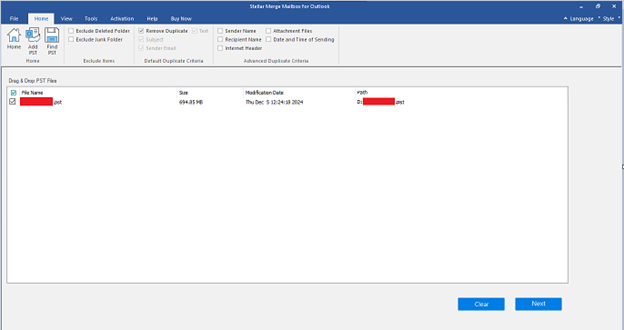
Note: There are additional filters, such as Remove Duplicate, Exclude Deleted Folder, etc., available in the top panel. Use them as per the requirement.
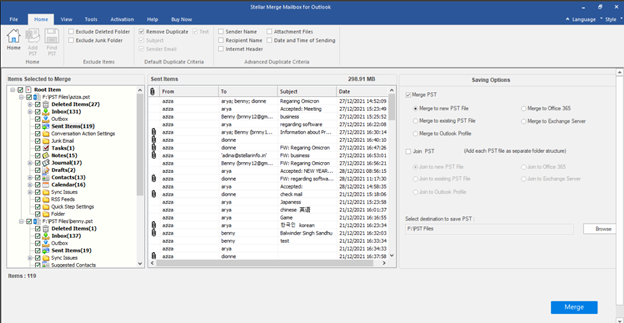
- On the next screen, you will see the Saving Options section in the right pane.
Note: The Join PST option allows you to add each PST file as a separate folder in the primary PST file.
- Choose the Merge PST action and select an additional option under it. Click on Browse to select the destination folder to save the merged PST.
- After making your selection, click Merge to begin merging PST files.
Once the PST files are merged, you will see the Process Completed prompt. Just click on the OK button to finish the process.
Conclusion
If you’ve several PST files, it at times becomes a hassle to manage all those files efficiently. Then, it becomes necessary for you to merge them. For this, we have explained different methods in this article. The easiest way to merge PSTs is by using a specialized PST merging tool. One such tool on which you can rely on is Stellar Merge Mailbox for Outlook. This PST merge tool is purpose-built for combining or merging PST files without duplication of data.